How to get your business on Apple Maps and Siri with Apple Business
Apple documents no separate Siri business listing. Siri uses the same place card you manage in Apple Business, the new name for Apple Business Connect. Here's how to claim or add your location, verify it, what to do without a storefront, and how to keep it consistent with your Google Business Profile.
On this page
Apple documents no separate “Siri listing” to sign up for. Siri and Apple Maps draw on the same business information, which you manage in Apple Business at business.apple.com. Apple Business is the new home of Apple Business Connect. To get listed, sign in, claim your existing place card or add a new location, verify it, and fill in your name, address, hours, category, phone and website exactly as they appear on your storefront and website. Plan for more than one sitting: Apple says organization verification can take up to five business days.
This guide follows Apple’s own Apple Business User Guide, last checked on November 28, 2026. Sampark hasn’t run these steps in its own Apple Business account, so each step describes what Apple’s documentation says, not a walkthrough we recorded. Menu names can change, so match them against the screen you see.
What changed: Apple Business Connect is now Apple Business
If an older guide sent you to Apple Business Connect, you’re in the right place under a new name. Apple says Apple Business “combines the capabilities previously found in Apple Business Manager, Apple Business Essentials and Apple Business Connect into a single, comprehensive offering.” Apple announced it on March 24, 2026, for launch on April 14, 2026, in more than 200 countries and regions. In that announcement, Apple said existing Business Connect data, including claimed locations, would migrate to Apple Business automatically.
If you claimed your place card under Apple Business Connect, sign in at business.apple.com and check that your location is there before you add anything.
Before you start
Gather these before you sign in, so you don’t stop halfway through a verification step.
- An Apple Account. If you used a personal Apple Account with Apple Business Connect, Apple says you can keep signing in with it, but then you can use only the brand and location management features of Apple Business. A Managed Apple Account gets the full feature set. Apple’s guide doesn’t say whether a brand-new sign-up can use a personal account, so check the sign-up screen.
- Administrator details. Apple says the first administrator needs a valid work email, a work phone number and a legal human name.
- Two ways to verify your organization. Apple asks for two verification methods. Its options include a D-U-N-S Number or EIN, a TXT record added to your domain’s DNS, an App Store Connect account, or official documents such as a business license, sales tax permit, lease or utility bill. If an agency is setting this up for you, note that Apple says the App Store Connect method isn’t available to third-party partners or agencies.
- Your exact business details. Write down the name on your sign, your street address, hours, main phone number and website, and compare them with your website and Google Business Profile now. You’ll use this list again in the consistency check below.
If you run a business in India, Apple lists brand and location management as available there as well as in the United States. Check which verification documents and business IDs the sign-up screen accepts for your country, because the examples in this guide are US ones.
How to claim or add your location
- Sign in at business.apple.com. Use the account you chose above.
- Verify your organization. Apple says organization verification must be completed within 60 days, uses two of the methods listed above, and can take up to five business days, with more time possible during periods of high volume. If the organization isn’t approved within that window, Apple says the organization and its data are deleted. Start it early so it runs while you prepare the place card.
- Create or choose your brand. Locations sit under a brand. When you add a brand, Apple asks for the brand name, the country or region, a primary category and a website, and you can add a logo. Apple approves brand names and logos, and says it can take up to five business days for them to appear in Apple services.
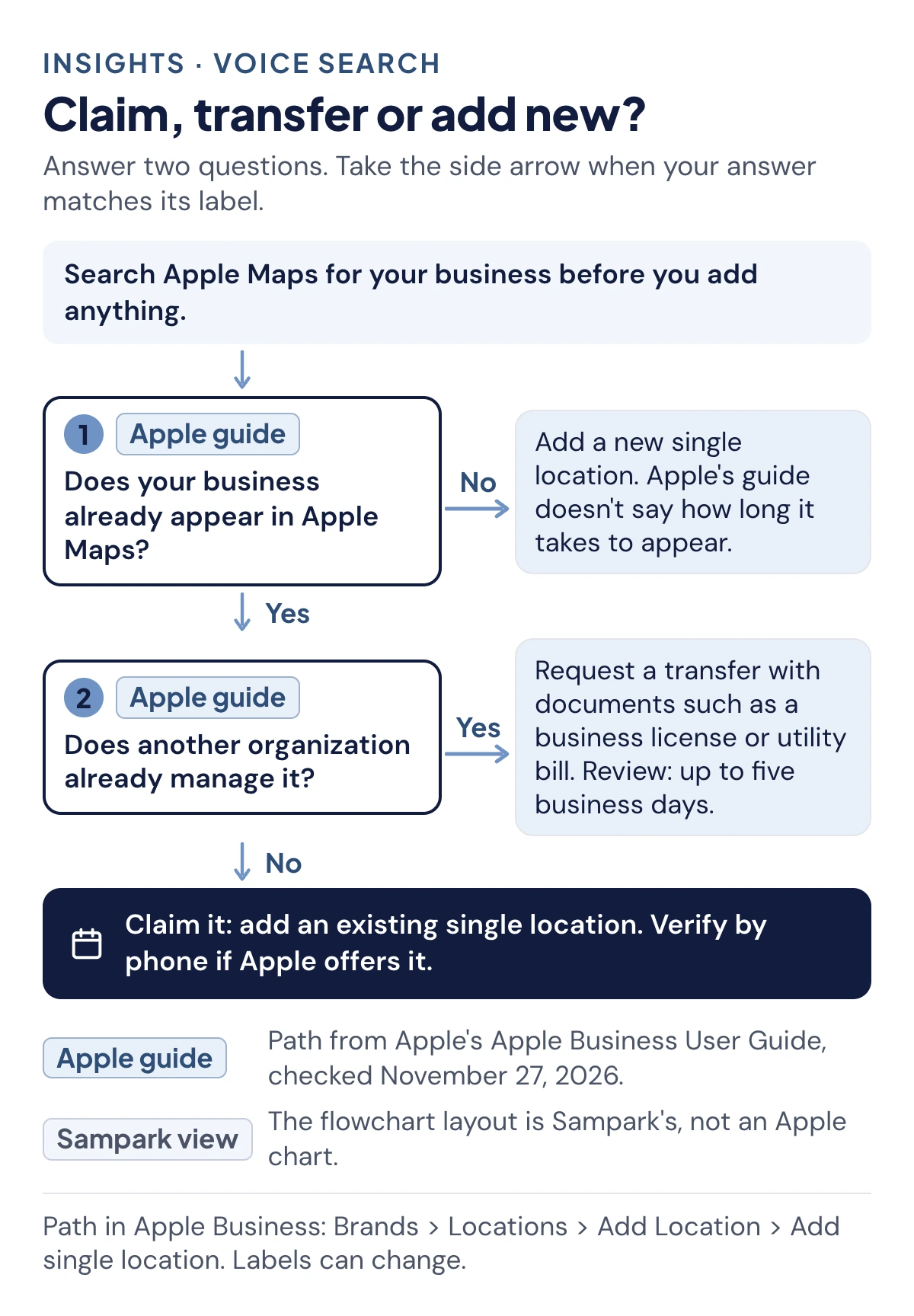
- Open the location flow. Apple’s guide gives the path as Brands > Locations > Add Location > Add single location.
- Claim before you create. Apple’s guide covers two cases. You add an existing single location when your business already shows up in Apple Maps, which means you’re claiming that place card. You add a new single location when it doesn’t. Search for your business first, and add a new location only if you find nothing. Claiming the existing card avoids creating a duplicate. The wording on screen may not match the guide’s section names.
- Verify the location, if Apple offers phone verification. Apple says phone verification may be available when the location already exists on Maps. The call goes to the phone number Apple has on record for the location, which may not be the number you use today. After you receive the call, you enter the four-digit verification code. Make sure someone can answer that line.
- Request a transfer if the location is “already managed”. If another organization manages the place card, which might be a former agency or a previous owner, Apple lets you request a transfer with supporting documents such as a business license or utility bill. Apple says that review can take up to five business days.
- Complete the place card. Fill in the fields using Apple’s rules, summarized in the next section, and save. The Apple guide pages cited here don’t say how long a new location takes to appear in Maps, so don’t expect a fixed date.
Fill in the place card the way Apple asks
Apple’s location fields include the name, an “about” description, logo, cover photo, photos, address and map pin, hours, phone, website, categories and attributes. These are Apple’s field rules that are easiest to miss:
- Name: it must match the name on your storefront, signage or official website. Apple doesn’t allow descriptions in the name or symbols such as ®, © or ™. For a hypothetical dental office, that means “Riverside Family Dental,” not “Riverside Family Dental – Best Dentist in Austin.”
- Address and pin: the address must be where customers can get goods or services during open hours, and the map pin goes on top of the building.
- Category: choose exactly one primary category. You can add up to 19 more.
- Phone and website: Apple asks for the phone number with its country code and no extension. The website can be your own site, and Apple also accepts Facebook, Instagram or TikTok pages.
- Photos: Apple reviews every photo, which can take up to three business days. A location can have up to 100 photos, and photos can’t contain added text, so skip the “Grand opening!” banner graphic.
No storefront? Use a brand profile, not a hidden address
Apple and Google handle a business without a customer-facing address differently.
On Google, a service-area business removes its address from its Business Profile and lists the areas it serves instead. Google says, “If you don’t serve customers at your business address, remove your address from your Business Profile,” and allows up to 20 service areas, but not a radius.
Apple’s current location pages don’t describe an equivalent. None of “About locations,” “Add a single location” or “Configure location attributes” mentions a service-area place card or a hidden address. Apple’s brand guide points the other way. It describes the “Single brand” option like this: “Use this if you don’t have a physical location where customers can go or for a small business.” Apple says a brand lets customers find you in Maps, Apple Wallet, Siri and more.
This isn’t new territory for Apple. In October 2024, Apple opened Business Connect registration to businesses without a physical location. What’s changed is the vocabulary: in today’s guide, the answer is a brand profile.
Illustrative example (hypothetical): a mobile dog groomer in Phoenix works out of a van and has no shop customers can visit. On Google, it would remove its address and list its service areas. On Apple, it would set up a single brand with its brand name, country, a primary category and its website, and skip the location flow. Apple approves brand names and logos before they appear, which can take up to five business days. It shouldn’t list the owner’s home address as a location, because Apple requires a location’s address to be a place where customers can get goods or services during open hours.
If you have a real storefront and also travel to customers (for example, a plumbing company with a walk-in parts counter), you have an address customers can visit, so the location flow applies.
Match Apple Business to your Google Business Profile
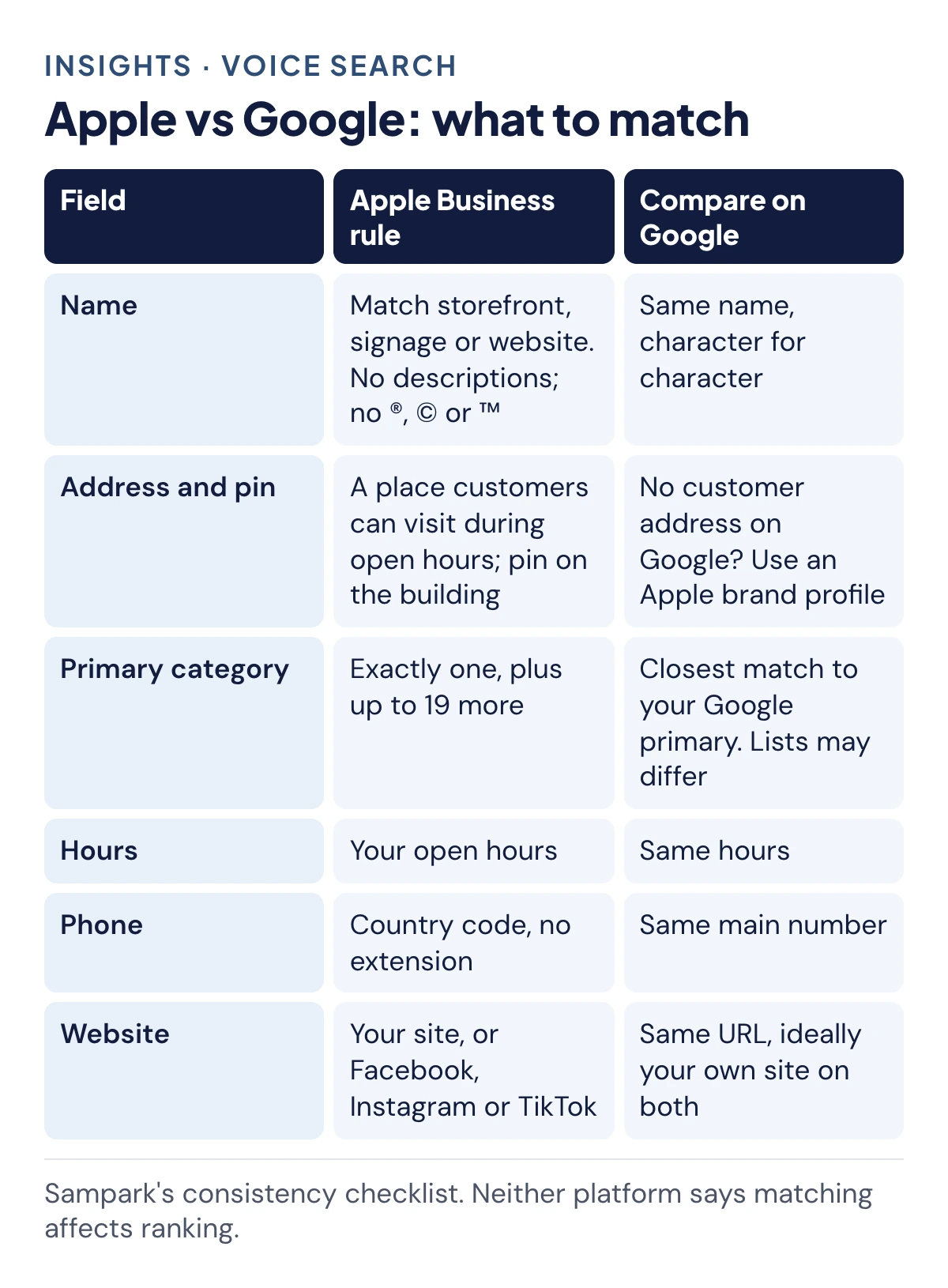
If you set up your Google Business Profile first, your Apple listing may be the one that’s out of date. Neither Apple nor Google says matching the two affects ranking. We recommend the check below because both platforms’ rules tie your listing to the same real-world details, so a mismatch usually means one of them is wrong. It’s Sampark’s checklist, not a platform requirement.
| Field | Apple Business rule | What to compare on Google |
|---|---|---|
| Name | Match storefront, signage or official website; no descriptions; no ®, © or ™ | Same name, character for character |
| Address and pin | A place customers can visit during open hours; pin on top of the building | Google says to remove the address if you don’t serve customers there. If you’ve done that, use an Apple brand profile instead of a location |
| Primary category | Exactly one, plus up to 19 more | The Apple category closest to your Google primary category. Don’t assume the two lists use the same names |
| Hours | Your open hours | Same hours |
| Phone | Country code, no extension | Same main number |
| Website | Your site, or a Facebook, Instagram or TikTok page | Same URL, ideally your own site on both |
How to confirm it worked
Once Apple Business shows your location or brand, check it from a customer’s side on an iPhone:
- Search Apple Maps for your exact business name and open the place card. Compare every field with your list from “Before you start.”
- Ask Siri “Where is [your business name]?” and check that it returns your business, not a similarly named one nearby.
- Search your name in Spotlight. Apple says place card information appears across its apps, including Maps, Siri, Calendar, Messages and Spotlight.
On the Apple pages cited here, Apple gives no timeframe for a new location to appear, so if it isn’t there right away, check again over the following days before changing anything.
If you’d rather not manage this yourself, Sampark’s voice search optimization service covers Apple Maps business information and includes a check of your business details across key listings. We can’t promise Siri answers or Maps placement, because no one honestly can.
If it doesn’t work
- The location is “already managed”. Another organization controls the place card. Request a transfer with documents (step 7). It can take up to five business days.
- No phone verification option. Apple says phone verification “may be available” if a location already exists on Maps, and the guide doesn’t describe it for new locations. Apple’s steps present the call as something to do only “if this option is available,” so if you don’t see it, continue with the rest of the location flow.
- A photo was rejected. Apple doesn’t accept photos with added text, so remove it and resubmit. Allow up to three business days for review.
- Apple changed your hours or name. Apple may edit a location’s name, status or hours based on customer reports, and it emails your organization when it does. Check that inbox. If you think Apple changed your name in error, you can contest the change. Apple says that review can take up to five business days.
- An old or duplicate location still shows. Apple warns that a removed location may still appear in Apple Maps and elsewhere in Apple apps. Remove duplicates through Apple Business rather than creating another one.
- You can’t get into Apple Business at all. Apple’s iPhone User Guide explains how to report something missing from Apple Maps, along with other kinds of issues. That’s a consumer fallback, not a way to manage your listing, but it can flag an obvious error while you sort out access.
Limits of this approach
- No Siri controls. Apple documents no Siri-specific listing setting and no way to influence which business Siri recommends. Getting the place card or brand right is the part you control.
- No published review times for most changes. On the pages checked, Apple states times only for organization verification, brand name and logo approval, photos, contested name changes and transfers.
- No published data sources. Apple doesn’t say on these pages what other data, beyond what you submit, feeds Apple Maps.
- This guide is documentation-based. Sampark hasn’t performed this flow in a live account, and Apple’s interface can change. If what you see differs from the steps above, trust the screen and Apple’s current guide.
- Paid placements are out of scope. This guide covers managing your listing only.
What to do next
Fix the details first, then look at where else customers and assistants find you. If AI assistants are getting your business wrong too, our guide on why ChatGPT doesn’t recommend your business walks through the checks, including inconsistent business information across the web.
Sources
All pages were last checked on November 28, 2026.
- Apple Support, Apple Business Connect is now Apple Business
- Apple Newsroom, Introducing Apple Business (March 24, 2026)
- Apple Newsroom, Apple expands tools to help businesses connect with customers (October 16, 2024)
- Apple Business User Guide, Intro to Apple Business
- Apple Business User Guide, Sign up for Apple Business
- Apple Business User Guide, Requirements for Apple Business
- Apple Business User Guide, Feature availability
- Apple Business User Guide, About locations
- Apple Business User Guide, Add a single location
- Apple Business User Guide, Configure location attributes
- Apple Business User Guide, Maintain location information accuracy
- Apple Business User Guide, Edit or remove a single location
- Apple Business User Guide, Photo and text standards and guidelines
- Apple Business User Guide, Brand identity attributes
- Apple Business User Guide, Add a brand
- iPhone User Guide, Report an issue with Maps on iPhone
- Google Business Profile Help, Manage your service areas for service-area & hybrid businesses